Architecture Overview
The CLI app is organized around a single entry point (kebab_cli.py) that wires together a terminal core
(terminal.py) with a renderer/UI layer (renderer.py), plus small modules for buffers and utilities.
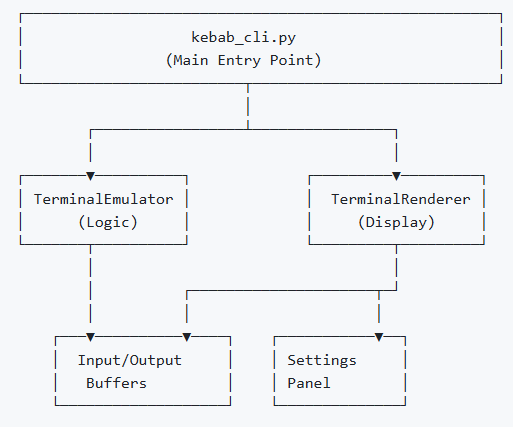
Diagram: High-level component wiring between
kebab_cli.py, the renderer, and core modules.
Module Descriptions
kebab_cli.py
Purpose: Application entry point and main event loop
Key Functions:
boot(): Initialize and run the application- Event handling for keyboard, mouse, window events
- Main render loop at 60 FPS
- Menu callback definitions
Key Variables:
CURSOR: Default pointer cursorCURSOR_TEXT: Text input cursorrenderer: TerminalRenderer instanceterm: TerminalEmulator instancescreen: Pygame display surface
terminal.py
Purpose: Terminal emulator logic
Key Classes: TerminalEmulator
Key Methods (implement these):
handle_key(event): Process keyboard inputupdate_cursor(dt): Update cursor blink stateupdate_selection(pos): Handle text selectionstart_selection(pos): Begin selectionend_selection(): Complete selectionget_selection(): Return selected textget_prompt(): Return current prompt stringrun_command(cmd): Execute user command
renderer.py
Purpose: All rendering and UI display
Key Classes: TerminalRenderer, SettingsPanel
Key Methods (implement these):
clear(),flip(),resize(size)render_buffer_with_input(),render_menu_bar(),render_dropdown()update_font_size(size),update_line_height(height)get_size(),menu_at_pos(pos)
Key Code Sections
Mouse Position Detection
# Output text region
usable_height = height_now - 2 * renderer.padding - ...
visible, start_idx = term.output_buffer.get_visible_with_start(
    usable_height, renderer.line_height
)

# Input line region
prompt = term.get_prompt()
combined = prompt + term.input_buffer.get_text()
input_y = height_now - renderer.padding - renderer.line_height
Text Width Calculation
txt = strip_ansi(line_data['text'])
txt_w = renderer.font.size(txt)[0]
# Character position detection
for ci in range(len(txt)+1):
    if renderer.font.size(txt[:ci])[0] + renderer.padding > mx:
        rel_char = max(0, ci-1)
        break
Event Loop Structure
running = True
while running and term.running:
    dt = clock.tick(60)  # 60 FPS cap

    for event in pygame.event.get():
        # Handle events

    # Update logic
    term.update_cursor(dt)

    # Render
    renderer.clear()
    renderer.render_buffer_with_input(...)
    renderer.render_menu_bar(...)
    renderer.flip()
Adding New Features
Adding a Menu Item
# Update menu definition in renderer.py:
self.menus = [
    {'label': 'File', 'items': ['Save', 'Save As', 'Clear', 'New Item']}
]

# Add callback in kebab_cli.py:
def new_feature():
    term.output_buffer.add("Feature executed!", TERM_CONFIG['success_color'])

renderer.menu_callbacks = {
    'File': {
        'Save': save_output,
        'Save As': save_as,
        'Clear': clear_output,
        'New Item': new_feature
    }
}
Adding a Settings Control
# Create slider definition in SettingsPanel:
self.sliders = [
    {'key': 'font_size', 'label': 'Font Size', 'min': 8, 'max': 32, 'value': 14},
    {'key': 'new_setting', 'label': 'New Setting', 'min': 0, 'max': 100, 'value': 50}
]

# Handle slider update in mouse motion event:
if key == 'new_setting':
    renderer.update_setting(new_value)
Adding Keyboard Shortcuts
# In terminal.py handle_key():
if event.key == pygame.K_s and event.mod & pygame.KMOD_CTRL:
    self.output_buffer.add("Ctrl+S pressed!", color)
Testing
Unit Testing Template
# test_terminal.py
import unittest
from terminal import TerminalEmulator

class TestTerminalEmulator(unittest.TestCase):
    def setUp(self):
        self.term = TerminalEmulator()

    def test_input_buffer(self):
        self.term.input_buffer.add_char('a')
        self.assertEqual(self.term.input_buffer.get_text(), 'a')

    def test_output_buffer(self):
        self.term.output_buffer.add("Test", (255, 255, 255))
        self.assertGreater(len(self.term.output_buffer.lines), 0)

if __name__ == '__main__':
    unittest.main()
Manual Testing Checklist
- [ ] Application starts without errors
- [ ] Window can be resized
- [ ] Menu clicks work
- [ ] File operations work
- [ ] Settings panel opens/closes
- [ ] Text selection works
- [ ] Scrolling works
- [ ] Keyboard input works
- [ ] Mouse cursor changes correctly
Debugging Tips
Enable Debug Output
# Add to kebab_cli.py
import logging
logging.basicConfig(level=logging.DEBUG, format='%(name)s - %(levelname)s - %(message)s')
logger = logging.getLogger(__name__)

# In event handlers
logger.debug(f"Event type: {event.type}, Position: {event.pos}")
Common Issues
- Cursor position incorrect
- Check
strip_ansi()is called before width calculation - Verify coordinate system (screen space vs text space)
- Check
- Menu not responding
- Check menu label exact match in callbacks dict
- Verify callback is not
None - Add try/except to see exceptions
- Rendering artifacts
- Ensure
renderer.clear()called before rendering - Check for overlapping UI elements
- Verify double buffering is enabled
- Ensure